 Foliage Toolkit
Foliage Toolkit Plus - Documentation
Version 0.9 - SASU SENTIENT ART
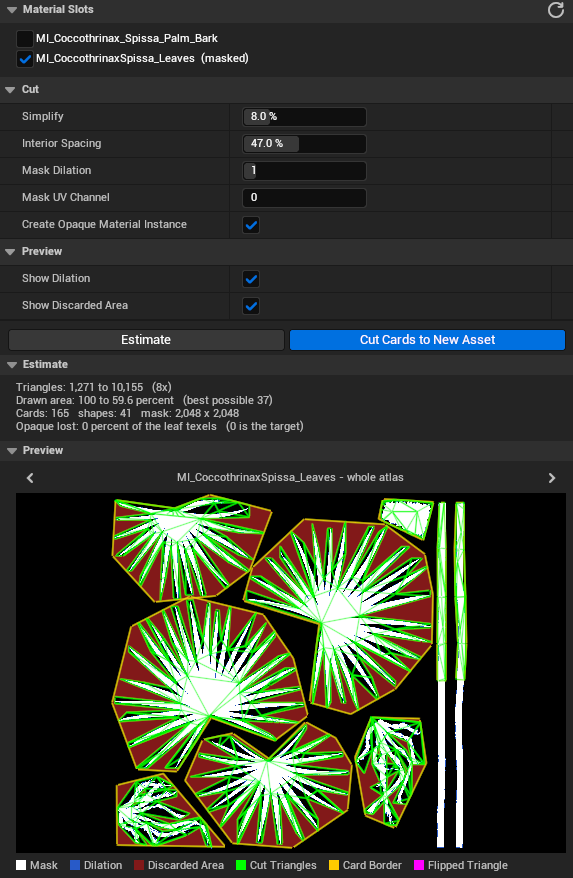
Foliage Toolkit Plus converts a static mesh tree into a Nanite skeletal tree that moves with Dynamic Wind. It contains everything in Foliage Toolkit Lite: the card cut of Lite is in its Static Mesh Editor panel too (see the Lite documentation).
| Engine | Unreal Engine 5.7 and 5.8 |
| Platform | Windows |
| Where | The recipe editor (an asset editor window) |
| In your game | The Foliage Wind Tree actor (FoliageToolkitRuntime module) |
| Engine plugins | Dynamic Wind and Procedural Vegetation Editor (Experimental in UE 5.7 and 5.8) |
Support: contact@sentient-software.com - Discord: https://discord.com/invite/JBHAfuKaAY
1. Install
- Install Foliage Toolkit Plus from Fab into your engine, or copy it into the
Pluginsfolder of your project. - Open your project. Open Edit > Plugins, find Foliage Toolkit Plus, and enable it.
- Restart the editor.
Important:
- Do not enable Lite and Plus in the same project. Plus contains everything in Lite. If you move from Lite to Plus, disable or remove Lite first.
- Plus enables two engine plugins: Dynamic Wind and Procedural Vegetation Editor. Epic marks both as Experimental in UE 5.7 and 5.8. The trees use the wind provider and the wind actor of the Dynamic Wind samples, which are in Procedural Vegetation Editor.
2. What the conversion does
The tool finds the trunk, the branches and the leaf cards of the static mesh. It makes a skeleton along the branches,
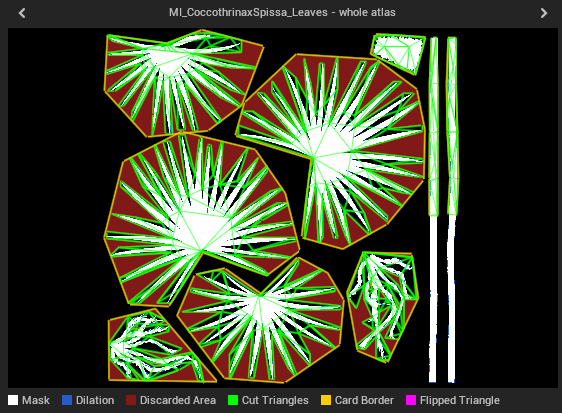
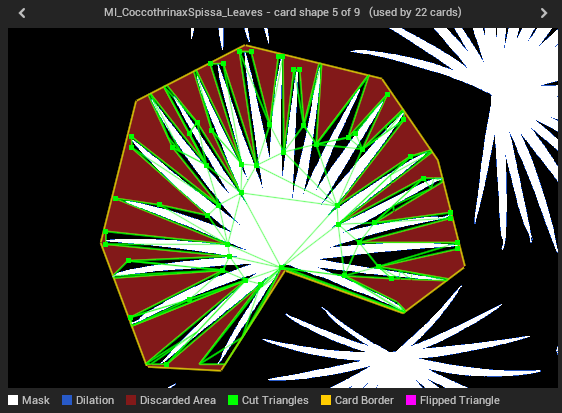
cuts each card to the shape of its opacity mask (as Lite does), and stores the cards that repeat as parts of a Nanite
assembly: one copy on disk, drawn many times. The result is a skeletal mesh (SK_<name>) with its skeleton, its parts
and its physics asset, ready for Dynamic Wind. The source mesh is never changed.
The recipe is the asset that holds your decisions for one mesh. It is next to the mesh, as <MeshName>_Recipe. An
empty recipe is a fully automatic conversion: you set only what the tool gets wrong.
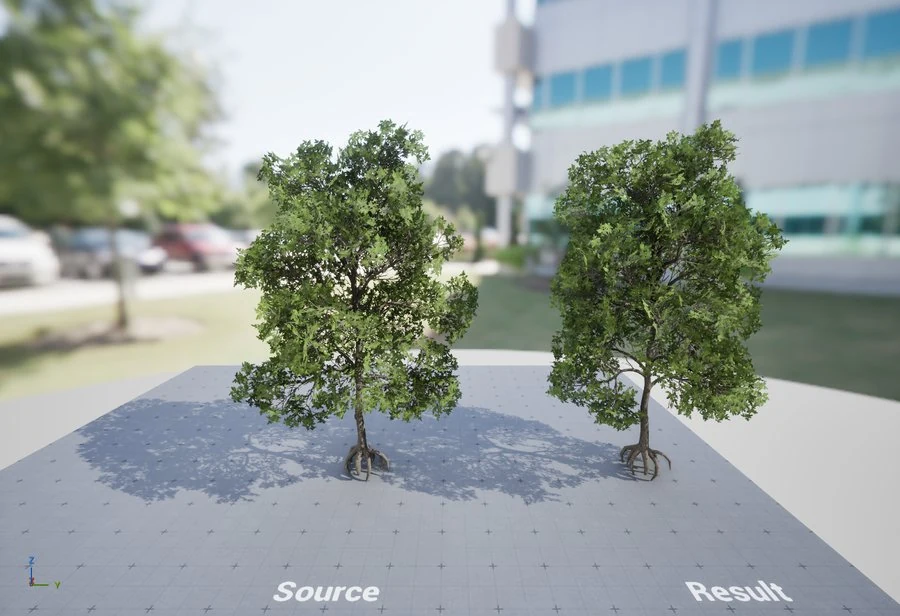
The source static mesh (left) and the converted skeletal tree (right).
3. Workflow
- Make the recipe. In the Content Browser, right-click a static mesh and select New Foliage Recipe. The tool makes the recipe next to the mesh, analyzes the mesh once and opens the recipe editor.
- Analyze (F7). The tool reads the mesh: the pieces, the regions of the atlas, the shape of each card and the skeleton. After a change, the stats say that the analysis is out of date: press Analyze again.
- Check the regions. In the Regions list, accept the suggested kinds, or set a kind yourself. Look at each region on the Atlas, and move its vector when the arrow does not follow the leaf or the frond.
- Convert (Ctrl+F7). The tool makes the skeletal mesh, its skeleton, its parts and its physics asset, and shows the Result. Nothing is saved yet.
- Look at the result. Turn around the tree, play the wind, and use the conversion checks (Wind groups, Bone ownership, Issues, Collision). If a part is not on its branch, align it (section 8).
- Save the recipe (Ctrl+S) and the new assets (File > Save All).
- Place in level puts the tree in your level with the wind.
You can convert again at any time. The tool fills the same skeletal mesh again: the trees that you placed in your levels keep the asset and show the new tree.
4. The recipe editor
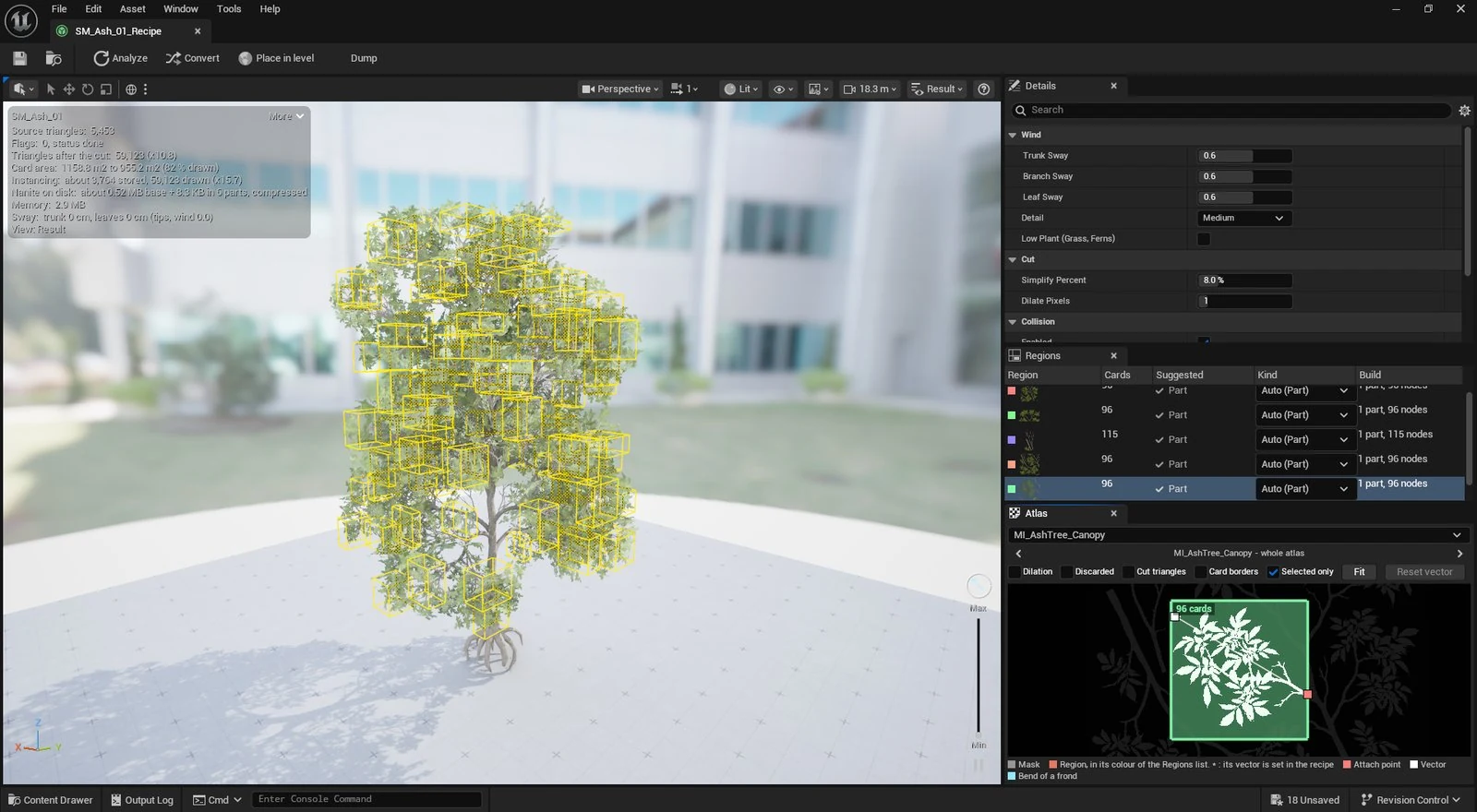
The viewport on the left. On the right: the Details of the recipe, the Regions list and the Atlas.
All panels show the same recipe: a change in one panel shows in the others immediately. Each change is one undo step (Ctrl+Z, Ctrl+Y). Press F1 or the Help button to open the help in the editor.
| Toolbar button | What it does |
|---|---|
| Analyze (F7) | Reads the source with the recipe as it is now. |
| Convert (Ctrl+F7) | Makes the skeletal mesh, its skeleton, its parts and its physics asset. It analyzes again first if the recipe changed. Nothing is saved. |
| Place in level | Puts the converted tree in the level as a Foliage Wind Tree actor with the Dynamic Wind provider, and adds the global foliage actor if the level has none. |
| Dump | Copies the recipe as JSON to the clipboard, and writes it next to the report file. For review, version control and scripts. |
| Help (F1) | The help of the recipe editor, with pictures. |
The stats panel at the top left of the viewport shows the numbers of the tree: the triangles before and after the cut, the card area that is still drawn, the bones, the instancing and the memory. More shows all the numbers, by section; Less shows only the key numbers.
5. What the viewport shows
5.1 Visualization modes
The Visualization modes menu of the viewport toolbar has 17 modes in two groups. Keys 1 to 0 select ten of them;
. and , select the next and the previous mode.
| Mode | Key | What it shows |
|---|---|---|
| Source | 1 | The source mesh with its materials. |
| Pieces | 2 | The trunk and the branches by class, with their centre lines and rings. No cards. |
| Pieces + Cards | The pieces and the cards. | |
| Skeleton | 3 | The pieces and the bones. No cards. |
| Skeleton + Cards | The skeleton and the cards. | |
| Bones | Each bone in its own colour, with the bone count, and no mesh. After a convert, the bones follow the wind. | |
| Base mesh | 6 | The base mesh with its materials, without the cards that become parts of the assembly. |
| Result | 5 | The converted skeletal mesh, with the wind. Needs a convert. |
| Foliage grid | The parts of the assembly in a row, each with the number of its copies. Needs a convert. | |
| Foliage grid (source cards) | The same grid, with the source card of each part, not cut. Needs a convert. |
Conversion checks (from the analysis, on the source: no convert needed):
| Mode | Key | Colours |
|---|---|---|
| Assembly plan | One colour for each part. Grey: cards that stay skinned. Dark: structure. | |
| Wind groups | 7 | The wind group of the bone that each triangle follows: 0 blue (thick), 1 yellow, 2 red (thin). Grey: the root. |
| Bones to tip | How many bones the wind moves from the root: blue 0, green 20, red 40 and more. | |
| Bone ownership | 8 | The bone that each triangle follows most. Grey: the root. |
| Regions | 4 | The cards of each region of the atlas, in the colour of the region in the Regions list. |
| Issues | 9 | Red: a piece with an error. Orange: a piece with a warning. |
| Collision | 0 | The branches that get collision capsules. |
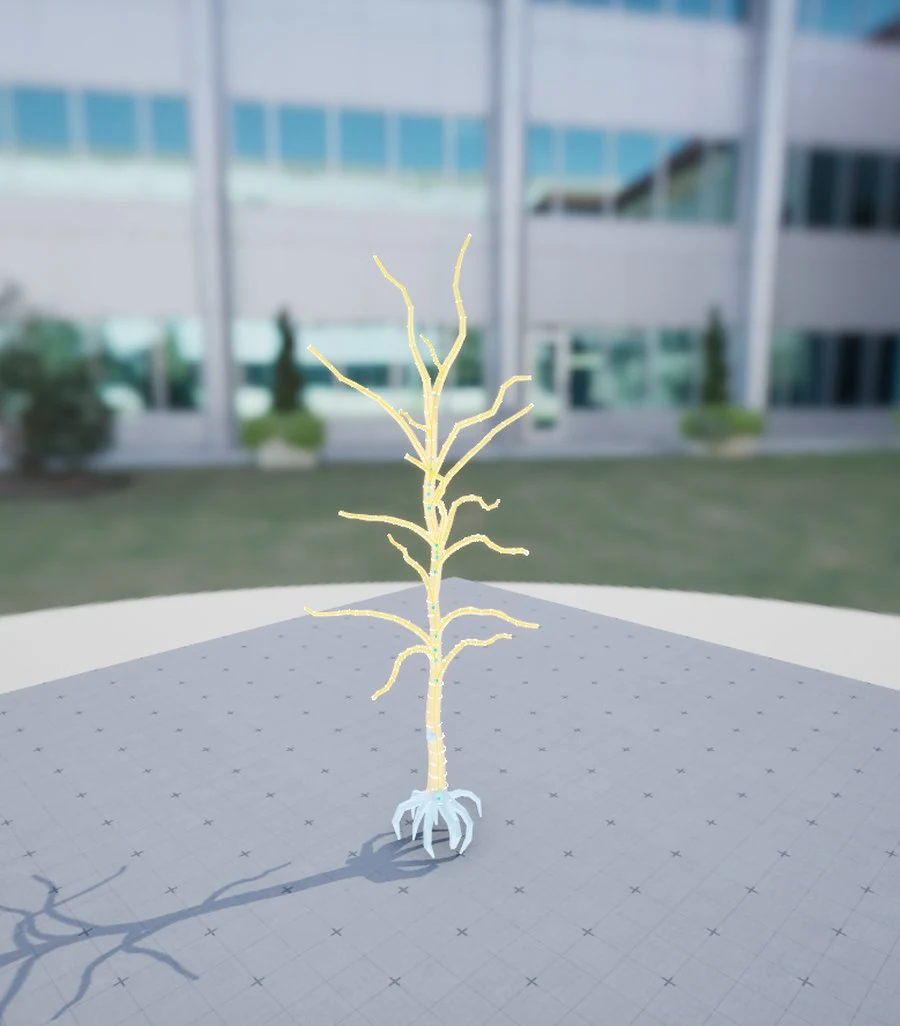
Pieces: the trunk and the branches by class, with their centre lines and rings.
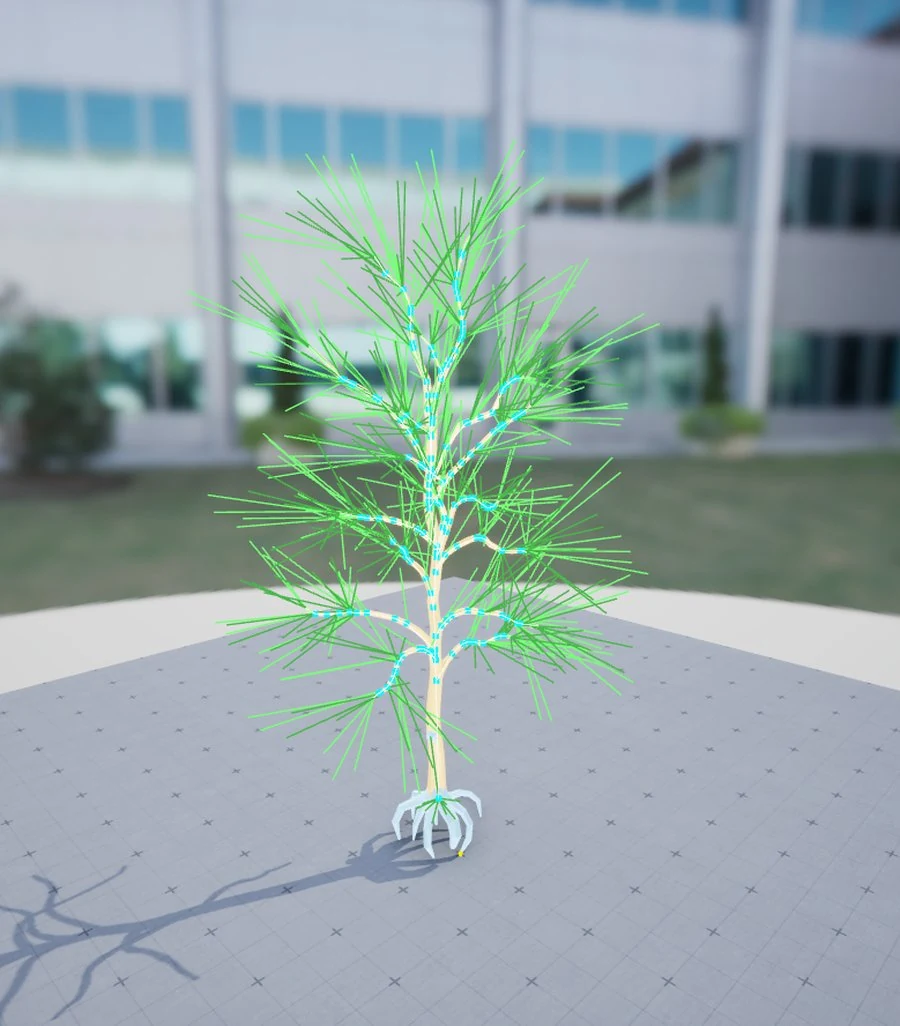
Skeleton: the bones along the branches and the leaves.
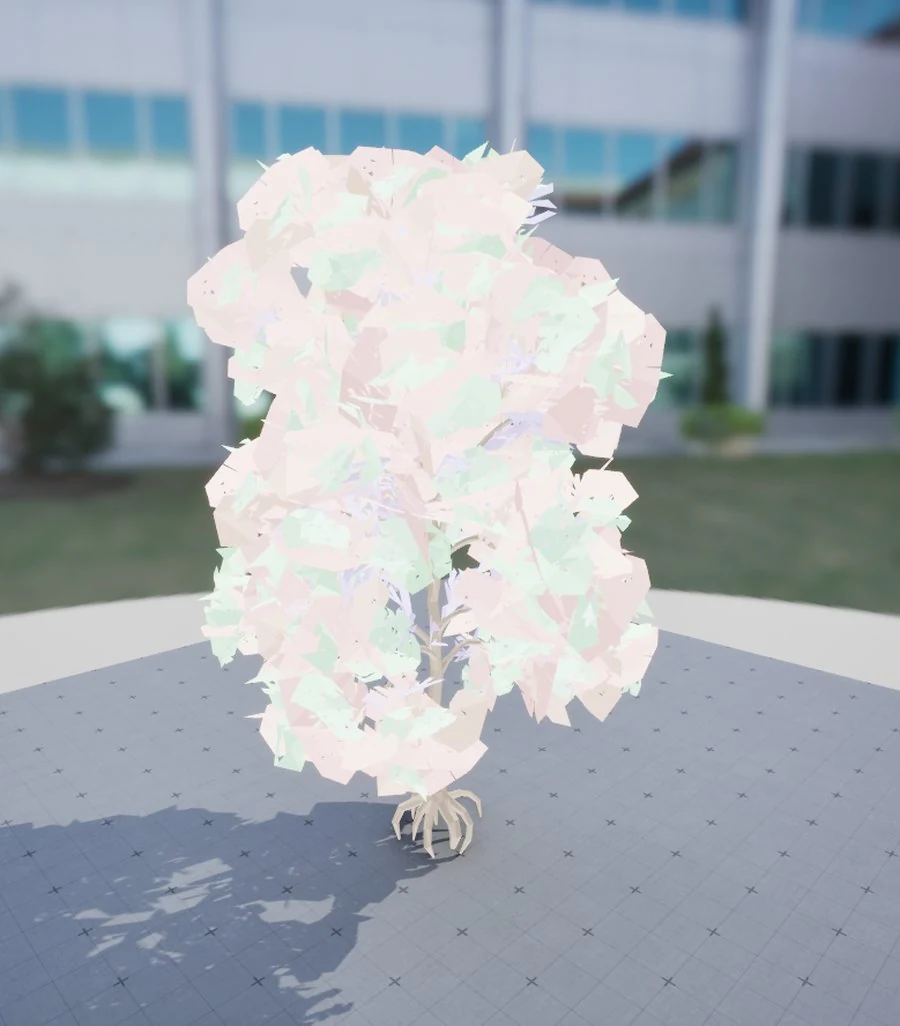
Regions: the cards of each region of the atlas.
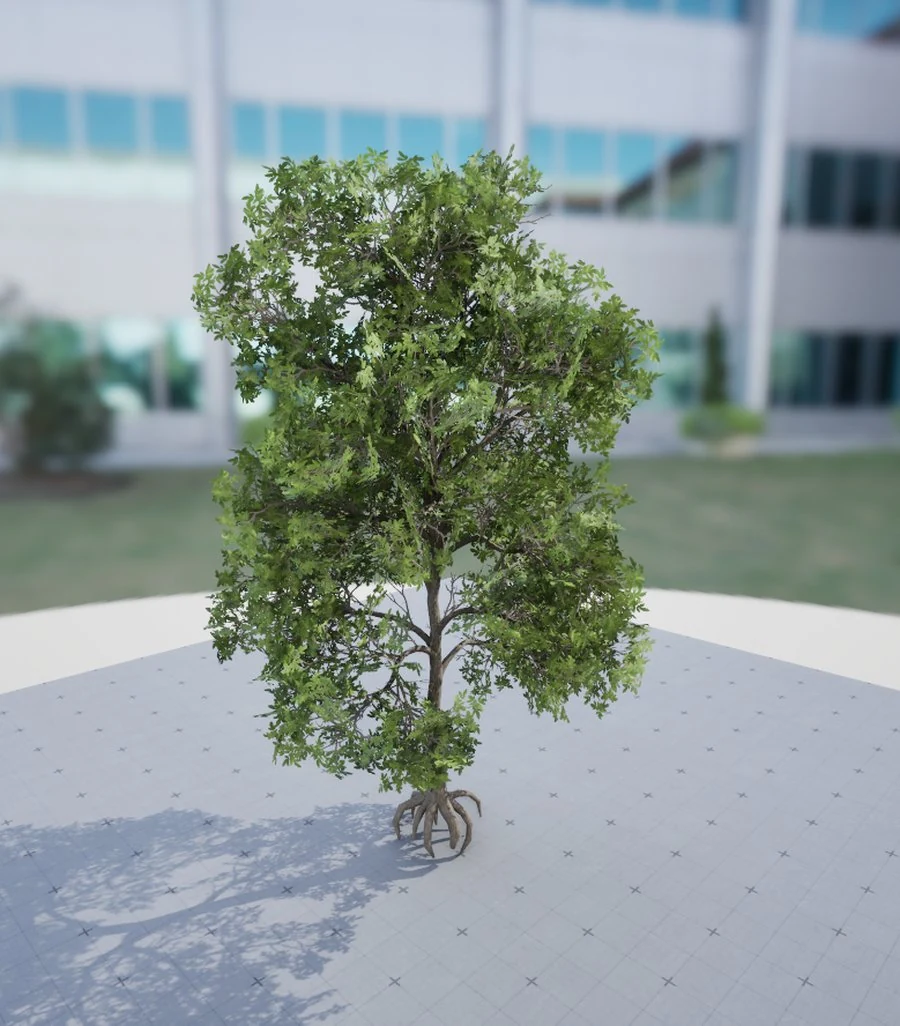
Result: the converted skeletal mesh, with the wind.
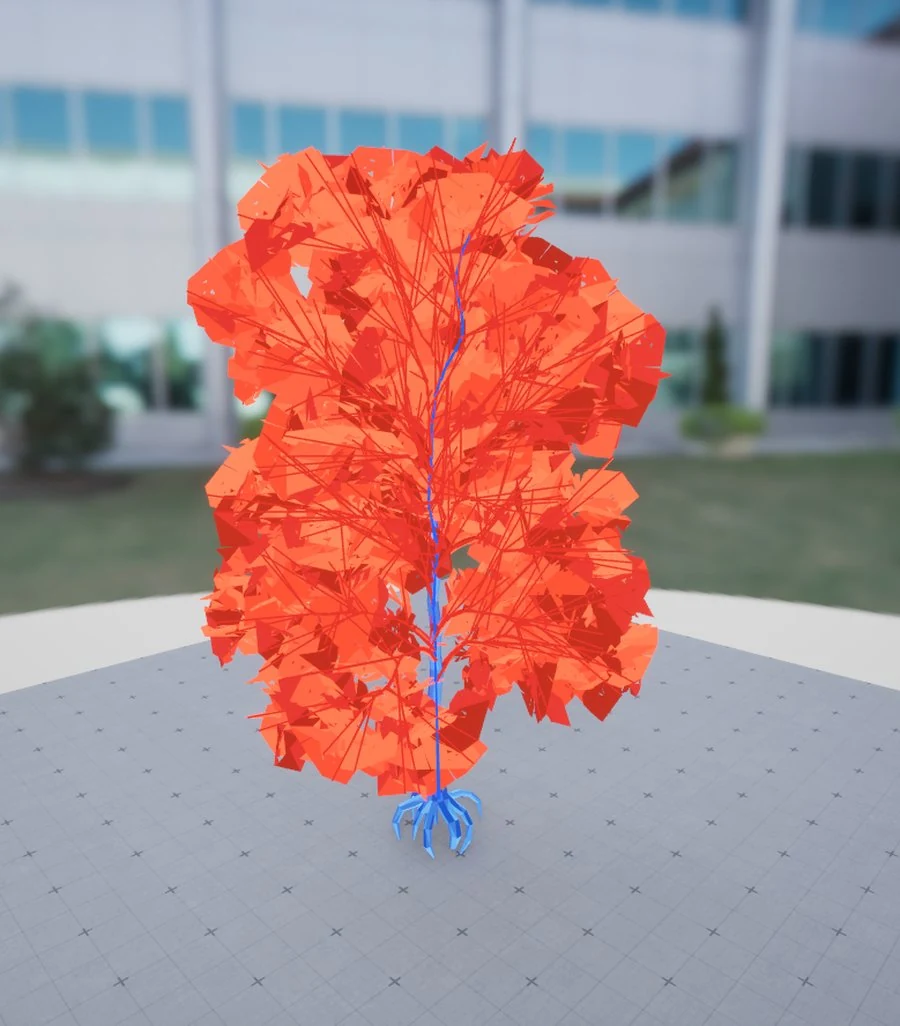
Wind groups: 0 blue (thick), 1 yellow, 2 red (thin).
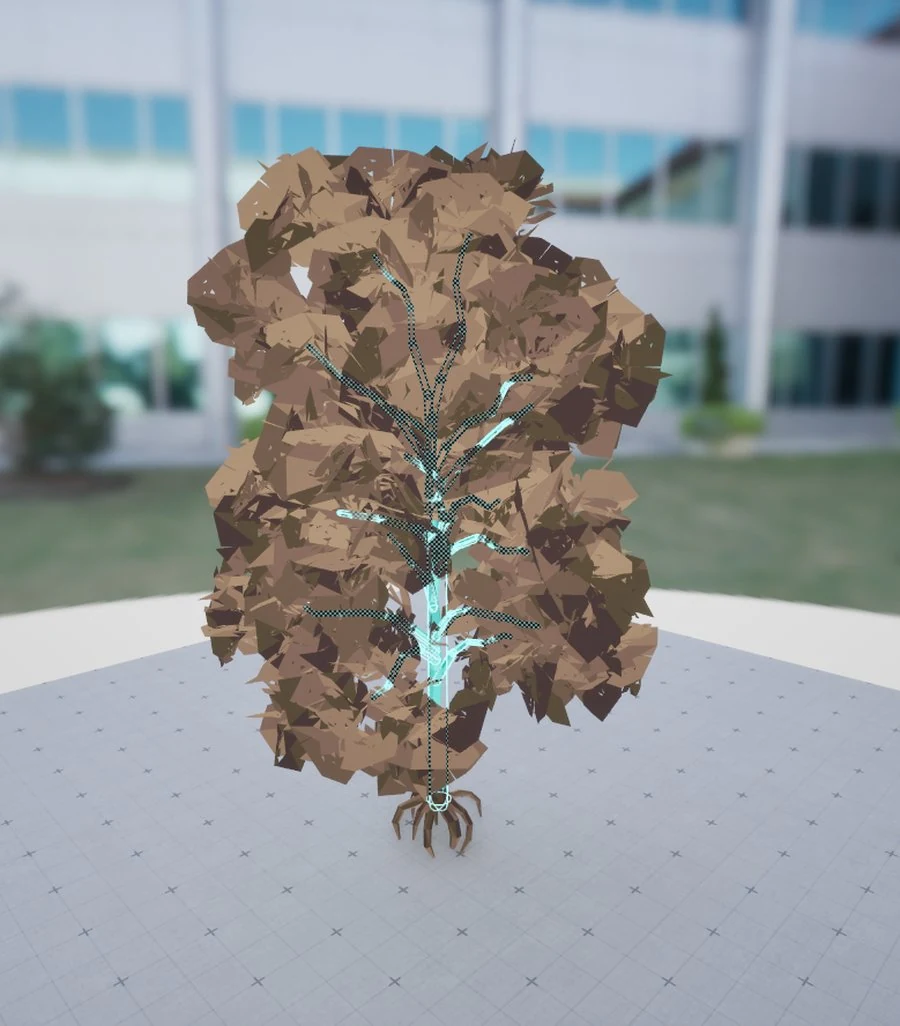
Collision: the branches that get collision capsules.
5.2 More in the Visualization modes menu
| Item | What it does |
|---|---|
| Opacity mask | Off: the masked materials draw opaque, so you see the geometry of each card and the shape that the cut left. The assets do not change. |
| Bones over the mesh | In Result: every bone drawn over the converted tree. Click a bone to select it: it and the bones below it turn white, with its name, its piece and the cards that follow it. |
| Piece ids near the mouse | The id of each piece near the mouse, as the log and the report name it. |
| Nanite (Result) | The Nanite views of the engine on the result: Assemblies, Voxels, Skinning, Clusters, Triangles, Overdraw, Pixel Programmable, Evaluate WPO. |
| Source | The cost views of the engine on the source: Shader Complexity, Quad Overdraw. |
5.3 Camera distance and layout
The camera menu of the viewport toolbar shows the distance of the camera from the tree (for example 12.5 m). It puts the camera at 5, 20, 50 or 100 m from the tree, in the same direction, to see what Nanite draws from there. Source next to the result (in the same menu) shows the source and the result side by side.
6. Regions
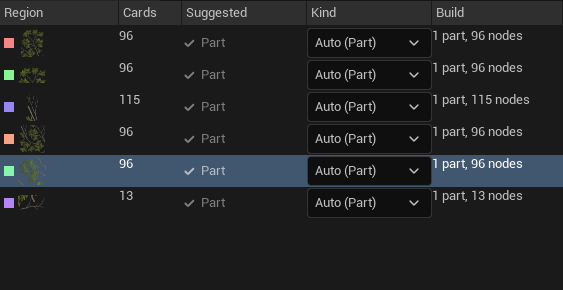
One row for each region of the atlas.
A region is one rectangle of the atlas. All cards that use it are copies of the same picture, so you set the whole region at once.
| Column | What it shows |
|---|---|
| Region | The colour of the region and where its rectangle starts, in texels. *: its vector is set in the recipe. |
| Cards | How many cards use the region. |
| Suggested | The kind that the tool suggests, from the length and the bend of the cards and how near they are to the trunk. Hover it to see why. Click it to accept it. Accept all accepts all suggestions in one undo step. |
| Kind | What you chose, or Auto with what the tool does now. |
| Build | What the last analysis makes of the region: parts and nodes, or skinned. |
| Frond bones | (Show Advanced) For a frond: the length of its longest bone in cm, and the number of bones along its vector. |
| Wind | (Show Advanced) The wind group of the bones of these cards: 0 moves least, 2 most. Auto: 2. |
| Kind | Use it for |
|---|---|
| Auto | The tool decides: a part, or a frond if the vector of the region has three points or more. |
| Part | Many rigid cards of one shape: stored once, drawn many times. The cheapest. |
| Frond | Long cards that bend: palm leaves, fern fronds. The cards bend on a chain of bones along their vector. |
| Stuck to trunk | Cards that lie along the bark and follow it, such as old leaves on a trunk. No bones of their own. |
| Keep skinned | Cards that stay in the base mesh, each on its own bone. Use it when the cards of a region have very different shapes. |
7. Atlas and vectors
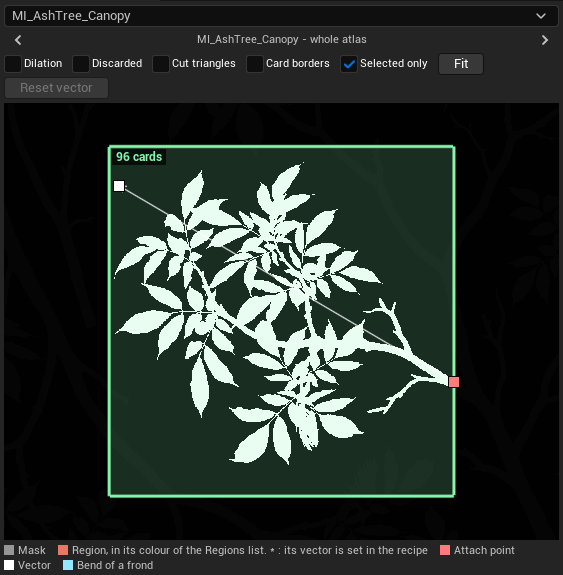
The atlas of a masked slot, with a region selected and its vector.
The Atlas shows the opacity mask of each masked slot, with the regions in their colours. Hover a region to see its values; click it to select it. Mouse wheel: zoom. Right or middle mouse button: pan. F or Fit frames the selected region, or the whole atlas.
The vector gives the direction of a card: from where it attaches (the red point, at the base of the stem) to where it points (the white point). Drag the points to move them. For a frond, double-click the line to add a bend (blue point), and double-click a bend to remove it. Reset vector removes the vector from the recipe: the tool guesses it again.
| Option | What it shows |
|---|---|
| Mask | The opacity mask. |
| Discarded | The area of the cards that the cut removes. |
| Dilation | What the dilation adds to the mask. |
| Cut triangles | The triangles of the cut cards. |
| Card borders | The border of the cards of the source. |
| Selected only | With a region selected, the rest of the atlas is dark, and only the vector of that region shows. |
8. Align a part
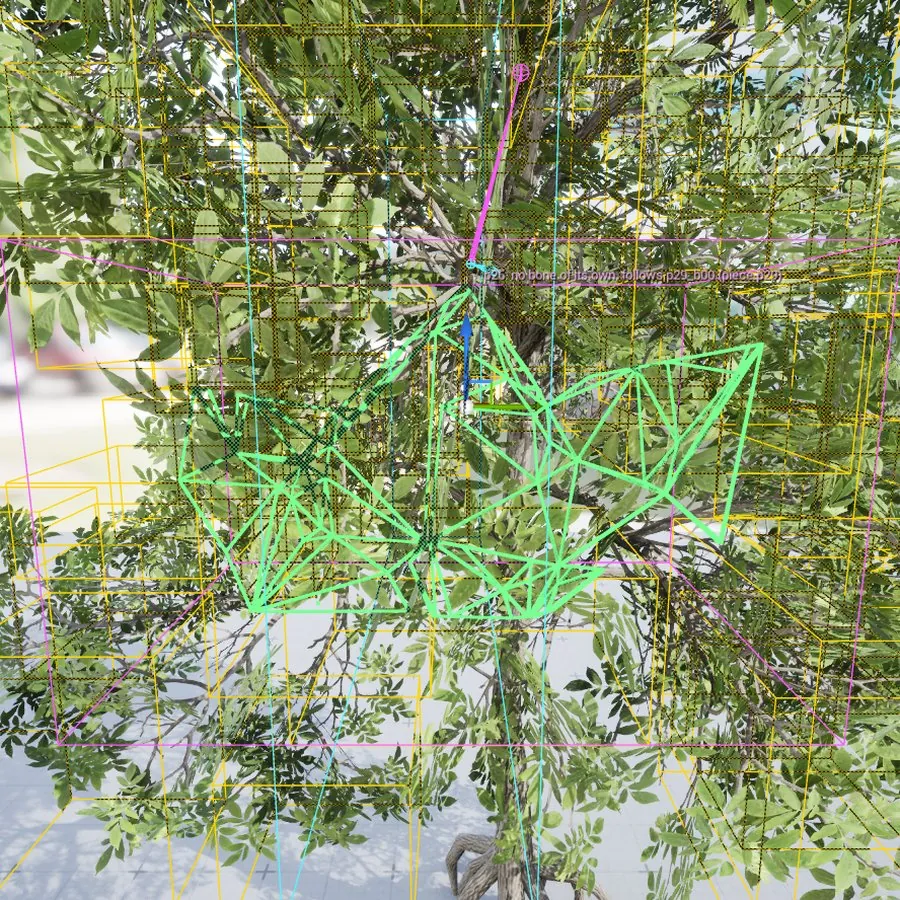
The gizmo on a card of a part. The card is drawn in green at the corrected position.
The cards of a part are copies of one card. When a branch sprite is not on its branch in the source, all the copies are off in the same way. Click one card of the part: a gizmo shows on it. Move (W), turn (E) or scale (R) it: all copies follow. The correction is saved in the recipe, and the next convert applies it.
9. Details
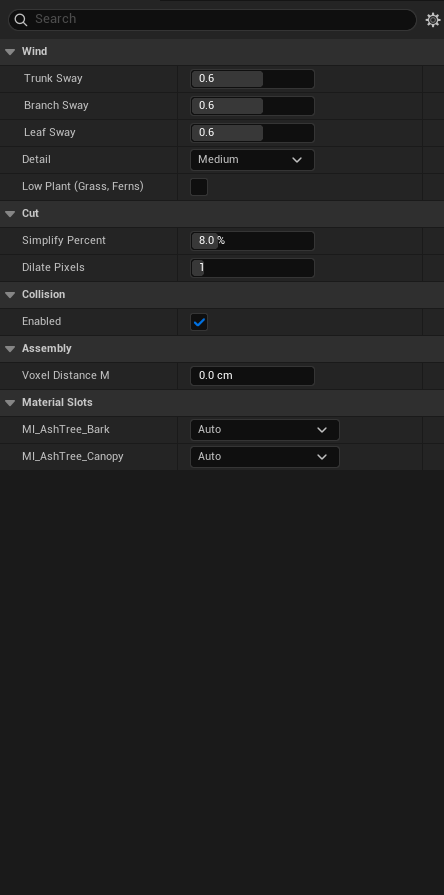
The settings of the whole conversion.
| Category | Setting | What it does |
|---|---|---|
| Wind | Trunk Sway, Branch Sway, Leaf Sway | How much each wind group moves, from 0 (still) to 1. 0.6 is the tree preset of the engine (default). With Trunk Group on, 0.6 is the most that the engine gives a trunk. |
| Wind | Detail | How smoothly the branches and fronds bend: Low (2 bones along each), Medium (4, default), High (6). More bones cost more. The sway stays the same. |
| Wind | Low Plant (Grass, Ferns) | Off: the wind fades toward the ground, so the base of a tree stays still. On: all parts move fully, from the base up. |
| Wind | Trunk Group (Show Advanced) | The thickest group moves as a trunk: a slow lean with the gusts (default on). |
| Cut | Simplify Percent | The same setting as in Lite (default 8). |
| Cut | Dilate Pixels | The Mask Dilation of Lite (default 1). |
| Cut | Interior Spacing, Mask UV Channel (Show Advanced) | The same settings as in Lite. |
| Collision | Enabled | Makes a physics asset with capsules along the branches (default on). |
| Collision | Min Radius Cm (Show Advanced) | A branch gets capsules when the radius of its base is at least this value (default 8 cm). |
| Bones | Min Bone Spacing Cm (Show Advanced) | The minimum distance between two bones along a branch (default 5 cm): a short twig gets fewer bones than Detail asks for. |
| Bones | Bone Spacing Radii (Show Advanced) | And at least this many radii of the branch (default 1.5): a thick trunk gets few bones. 0 turns it off. |
| Assembly | Voxel Distance M | With Voxelize: the distance at which the tree changes to Nanite voxels. 0: the project setting. |
| Assembly | Part Tolerance (Show Advanced) | The cards of a region become one part when their vertices are within this fraction of the card length of each other. 1 (default): one part for each region, whatever the bend of its cards. Lower: more parts, nearer to each card. |
| Output | Output (Show Advanced) | Where the tool writes the skeletal mesh (/Game/Trees/SK_Oak). Empty: SK_<name> next to the source. |
| Material Slots | Class | The class of each slot: Auto, Structure, Static, Card, Geometry or Ignore. Set it when the tool is wrong. |
9.1 Project settings
Project Settings > Plugins > Foliage Toolkit Plus (saved in Config/DefaultFoliageToolkit.ini):
| Setting | What it does |
|---|---|
| Shape Preservation | How Nanite keeps the shape of a converted tree in the distance. Auto (default): Voxelize when the Nanite voxels of the engine are on, else Preserve Area. None: the leaves thin out in the distance. Preserve Area: the same surface area at all distances. Voxelize: the triangles change to voxels in the distance. |
| Voxel Distance M | With Voxelize: the distance at which a converted tree changes to voxels (default 25 m). 0: Nanite decides. |
| Show Advanced | Shows the expert values in the recipe editor: the bone spacings, the details of the cut, the collision radius, the trunk group, the part tolerance, the output, and the Frond bones and Wind columns of the Regions list. |
10. Wind and Place in level
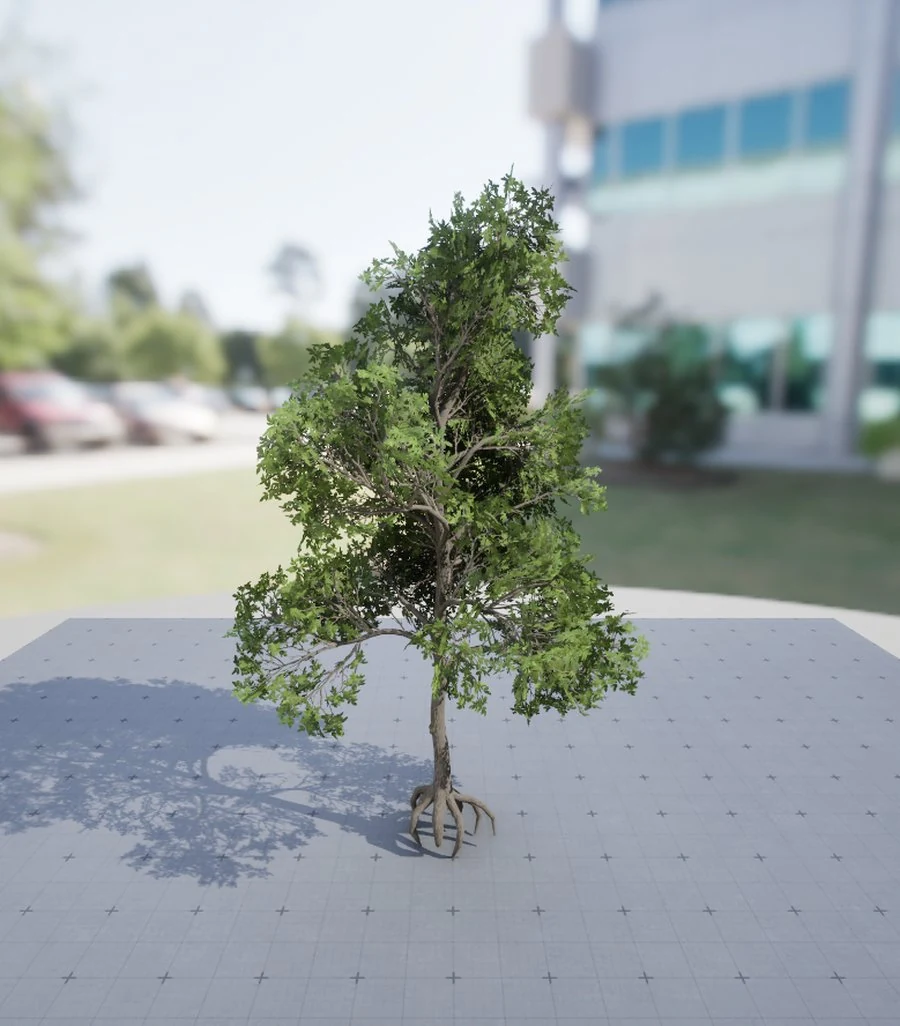
The Result in a strong wind. The wind of the viewport is a preview of Dynamic Wind.
At the right of the viewport:
- The slider sets the strength of the wind, from none to strong. The wind moves the Result only.
- The circle shows the direction of the wind, seen from above: the top of the circle is where the camera looks. Drag in it to turn the wind.
- The button stops the wind or plays it again. When the wind is stopped, what is drawn over the tree stays where it was.
Place in level puts the tree in the current level as a Foliage Wind Tree actor with the Dynamic Wind provider, and adds the global foliage actor of the engine if the level has none. You can also drag a converted recipe from the Content Browser into the level: this also makes a Foliage Wind Tree. The actor is in the FoliageToolkitRuntime module and ships in your game.
11. Scripting
The recipe and the conversion are open to Blueprint and editor Python. Example: convert a mesh with its recipe.
import unreal

P = unreal.FoliageToolkitPlusLibrary
mesh = unreal.load_asset("/Game/Trees/SM_Oak")

recipe = P.find_recipe(mesh) or P.create_recipe(mesh)
result = P.convert_recipe(recipe)
print(result.success, result.status, result.bones, result.skeletal_mesh)
print(P.dump_recipe(recipe)) # the recipe as JSON| Function | What it does |
|---|---|
FindRecipe(Mesh) / CreateRecipe(Mesh) | The recipe of a mesh, or a new one next to it. |
AnalyzeRecipe(Recipe) / ConvertRecipe(Recipe, OutputPath) | Analyze and Convert, as the toolbar buttons. |
AnalyzeTree(Mesh) / ConvertTree(Mesh, OutputPath) | The same for a mesh, with its recipe if it has one (else fully automatic). |
DumpRecipe(Recipe) / ApplyRecipe(Recipe, Json) | Read and write the recipe as JSON. ApplyRecipe changes nothing if the text has a problem, and returns the problems. |
DumpSavedRecipe(Recipe) / RevertRecipeToSaved(Recipe) | The recipe as it is saved on disk, and a return to it in one undo step. |
DiffRecipeTexts(A, B) | The differences between two recipe texts, as JSON. |
GetReportPath(Mesh) | The report file of the mesh. |
MakeWindHeatMesh(SkeletalMesh) | A copy of a skeletal mesh with wind data, coloured by the number of bones between each vertex and the root. |
The result of an analysis or a conversion has success, message, status (done, needs_review or failed),
report_path, skeletal_mesh, pieces, bones and flags.
Console commands:
FoliageToolkit.Plus.Analyze /Game/Path/To/StaticMesh
FoliageToolkit.Plus.Convert /Game/Path/To/StaticMesh [/Game/Path/To/SK_Output]
FoliageToolkit.Plus.WindHeat /Game/Path/To/SkeletalMesh [/Game/Path/To/Output] [MaxBones]
12. Shortcuts
| Keys | Action |
|---|---|
| F7 / Ctrl+F7 | Analyze / Convert |
| F1 | Help |
| 1 to 0 | Source, Pieces, Skeleton, Regions, Result, Base mesh, Wind groups, Bone ownership, Issues, Collision |
| . / , | Next / previous visualization mode |
| F | Frame the selection, or the whole tree |
| Esc | Clear the selection |
| W E R | Move, turn, scale the aligned part |
| Ctrl+Z / Ctrl+Y | Undo / redo |
You can change all shortcuts in Editor Preferences > Keyboard Shortcuts > Foliage Recipe Editor.
13. Tips
- Most trees need only the Regions list: accept the suggestions, check the vectors on the Atlas, and convert.
- When the stats say out of date, the panels show the last analysis. Press Analyze to see your changes.
- If the cards of a region are not on their branches after a convert, check the vector of the region on the Atlas first. If the cards of the region have very different shapes, set the region to Keep skinned, or lower Part Tolerance (Show Advanced).
- Many bones cost more in the wind. If a tree has too many bones, set Detail to Low.
14. Support
- Email: contact@sentient-software.com
- Discord: https://discord.com/invite/JBHAfuKaAY
Please send the engine version, the name of the product (Plus) and, for a conversion problem, the recipe (Dump
button) and the report file that the tool writes: <Project>/FoliageToolkit/<path of the mesh>.report.json.
The trees in the pictures are third-party assets (Oleksiy).